FAQs
- Q: When I plug the USB drive into my machine, I get prompted to scan and fix the drive. What should I do?
- A.
This prompt can occur if you're using Windows Vista as your operating system. The drive is not damaged or corrupt, and so it is safe to 'continue without scanning'.
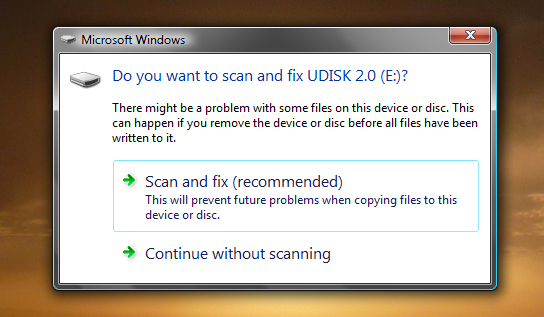
Warning: If you choose to 'scan and fix' the drive, you may lose some of the files on the USB drive which will prevent the installer from working properly.
If you have scanned the drive and the installer no longer works, we can supply you with a new drive.
Simply email [email protected] including your name and contact information in the email. - Q. Do I need the activate.exe file once I have activated the Presentation Facilitator?
- A. No. Once the activation is complete you can delete the file from your computer.
- Q. I have installed the Presentation Facilitator to a different location; what do I do?
- A. If the activation software cannot find the correct folder you will need to locate it manually.
Click on the address bar below the 'complete activation' button, and this will open a file browser.
Browse for the folder containing the application and click 'ok'. The activation will then proceed,
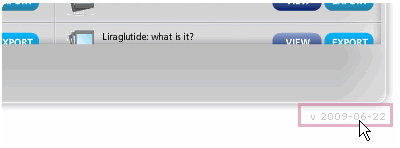
please ensure you follow the onscreen instructions. - Q. Where do I find out the date of my version of the application?
A. At the bottom right of the application you will see a date below the right corner.
- Q. I'm running a version dated 11-11-2008, do I need to update my version?
- A. The version of the application you're running is out of date. Until you're provided with a new version you should follow these steps to perform a software upgrade:
-
Click on the 'Download Update' button

-
On being prompted select
'save file' then press 'ok' to proceed. -
Choose a location to save the file
to (such as your desktop) -
Once it has finished downloading,
run the 'activate.exe' application by double clicking. If a warning appears select run. You will then be guided through the final steps. -

-
- Q. The images in my presentation are distorting when I print them out; how can I prevent this?
- A. Save the document in PDF format before printing.
- Q. How can I switch between widescreen and standard aspect ratio presentations?
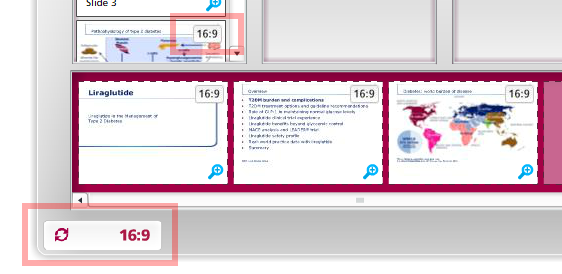
- A. The Presentation Facilitator features two modes, allowing you to view, build and export presentations in either widescreen (16:9) or standard (4:3) aspect ratios. To switch from one mode to the other, simply access the settings tab and select the desired mode.
You can quickly access this setting by clicking on the mode indicator in the bottom left area of the user interface.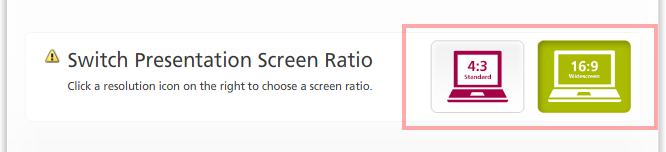
Your saved presentations are automatically synchronised between both modes.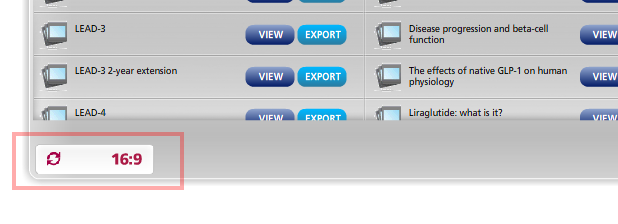
- Q. Can I add my own slides to the Presentation Facilitator?
- A. You can import your own presentations into the Presentation Facilitator and use them in the slide builder module, just like a normal built-in master presentation.
Please note that your imported slides are loaded into the software in their unaltered, original aspect ratio, and are accessible in both aspect ratio modes of the Presentation Facilitator. It is therefore recommended that your imported slides are saved in either widescreen (16:9) or standard (4:3) format to ensure that they match one of the aspect ratios of the built-in master presentations. This will allow you to match the export aspect ratio of the Presentation Facilitator to your own slides, and to ensure that the slide dimensions of the exported PowerPoint presentation are consistent.
You can easily check the aspect ratio of your imported slide by looking at the indicator icon displayed on the preview thumbnail in the slide builder module.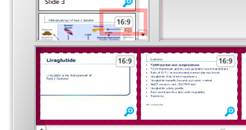
- Q. My exported presentation contains slides with different aspect ratios. What can I do to amend this?
- A. The slide aspect ratio of your exported presentation is determined by the Presentation Facilitator aspect ratio mode. You can switch between widescreen and standard aspect ratios in the settings tab. If the presentation you are exporting contains your own imported slides, the aspect ratio of these slides must match the Presentation Facilitator aspect ratio mode. The software will not alter or resize your own imported slides.
You can verify the aspect ratio of your imported slides in the slide builder module: an indicator icon is displayed on the preview thumbnails of your own slides.